Getting Started Guide
The Getting Started Guide is meant to provide a "quickstart" for your development of TrainAR trainings and guides you through the process of creating a very simple TrainAR training from scratch. This Getting Started Guide presumes that you already completed the Installation & Setup of Unity and TrainAR. TrainAR ships with two example trainings, Coffee and Four-Stroke Engine, that can be deployed directly for testing. You can also try to deploy and test them first: For this, directly skip to "Deploy your training to your phone". The examples stay untouched, as we create our own training next to them.
Create a new training
Open the TrainAR Unity project with Unity 6.7 Alpha (6000.7.0a6) through Unity Hub, as described in Installation & Setup. The authoring scene, layout, and training graph open automatically on the first launch. If needed, choose TrainAR → Open TrainAR Authoring Tool from the top menu. You should now see the TrainAR Authoring Tool roughly like this:
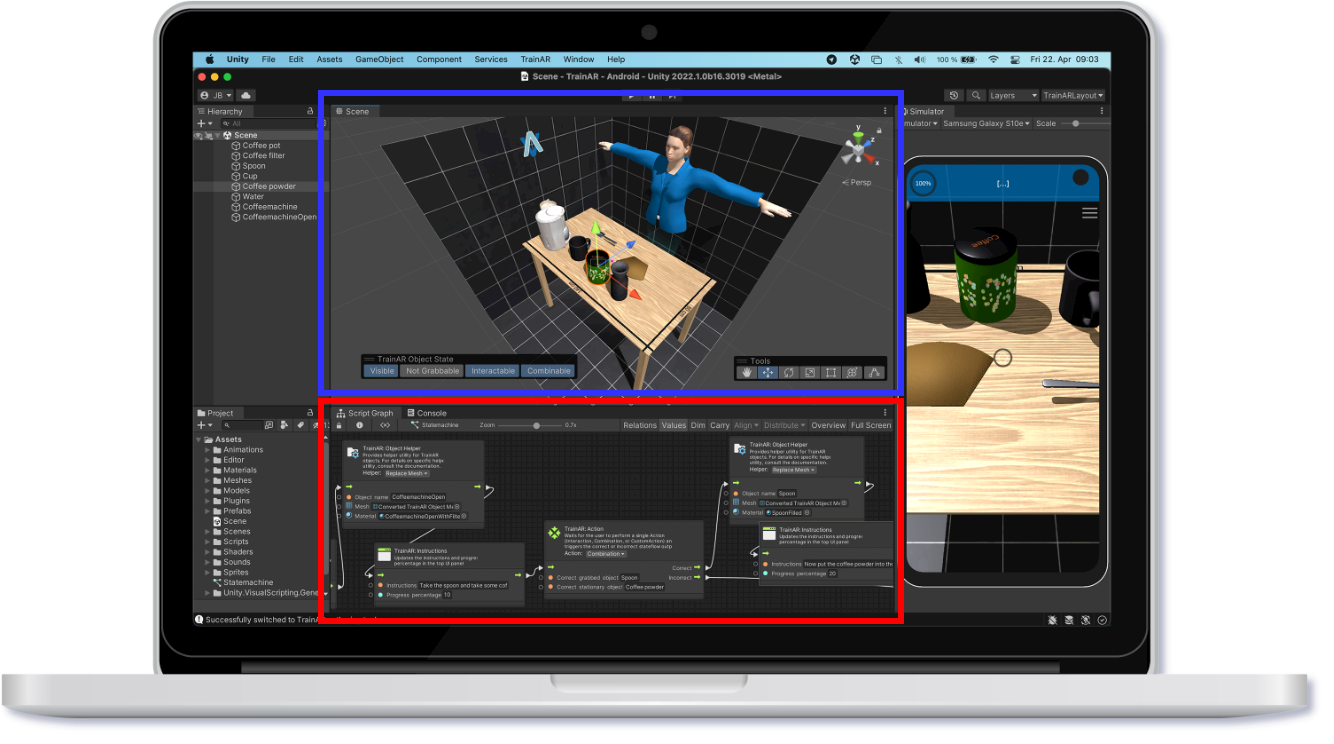
As you can see, the Coffee example training is open. Next to the Simulator on the right is the TrainAR Trainings tab, which lists all trainings of the project (see Managing Trainings). Click + Add new training at the bottom of the list and give your training a name, for example My Coffee. TrainAR creates the new training and opens it in the authoring tool.
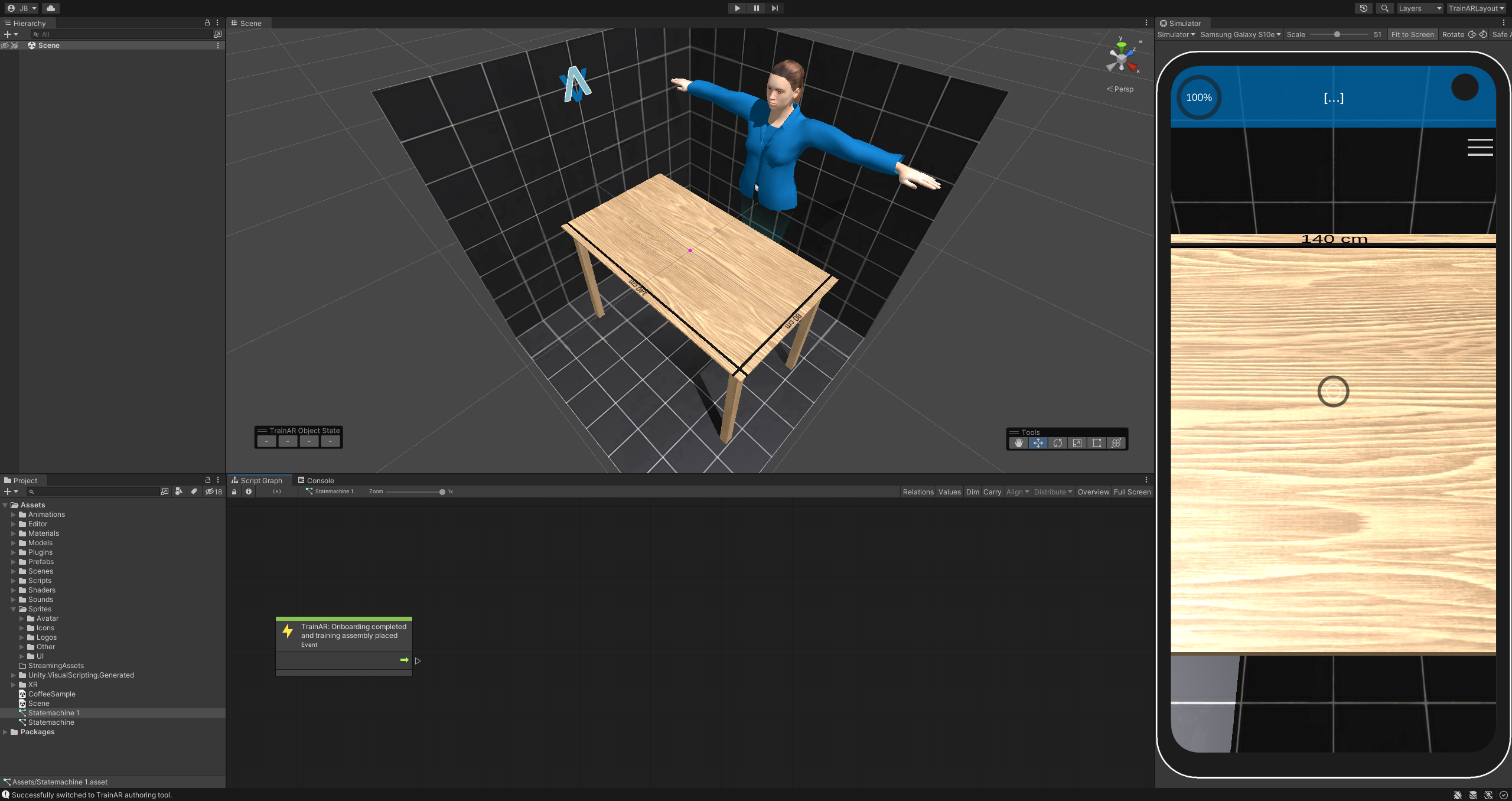
In the scene window you should now see the reference setup of the current Workspace (a room of black tiles, a table and a female character) but no TrainAR Objects in the Hierarchy or Scene. The stateflow only contains the green TrainAR: Onboarding completed and training assembly placed node, where every training starts, and the TrainAR: Training Conclusion node, where it ends. The reference setup should give you an idea of the size of objects in regards to the real world when viewed in the authoring tool and is not deployed with the TrainAR training. The small magenta point in the middle of the table marks the placement point: the training is placed with this point where the trainee puts it down in the app.
Create TrainAR Objects
On the left in the Hierarchy tab is a (currently empty) list of the objects in the scene.
On the Bottom Left, in the Project Tab open the Prefabs folder. There is a Prefab named Spoon_Prefab.
Click on this Prefab and drag-and-drop it into the Hierarchy Tab. The spoon should appear on the table.
To interact with this object, you'll have to convert it to a TrainAR Object. To achieve this select the object either in the hierarchy or directly in the scene tab. Press the button with the label Convert to TrainAR Object that now appears on the bottom left of the scene tab. A preview window showing the chosen object should appear. This window gives you more specific options before you start the conversion process. For now, just ignore those and click on Convert to TrainAR Object.
You can move the newly created TrainAR object around, rotate it or change its size. To do this, you can switch between different tools in the Tools Bar in the Scene View. For now make sure the Move tool is selected and move the object in a fitting position on the reference-table.
Now add Coffee_Tin_Prefab from the Prefabs folder, unpack it and convert it to a TrainARObject, then position it. Your setup should now look kind of like this:
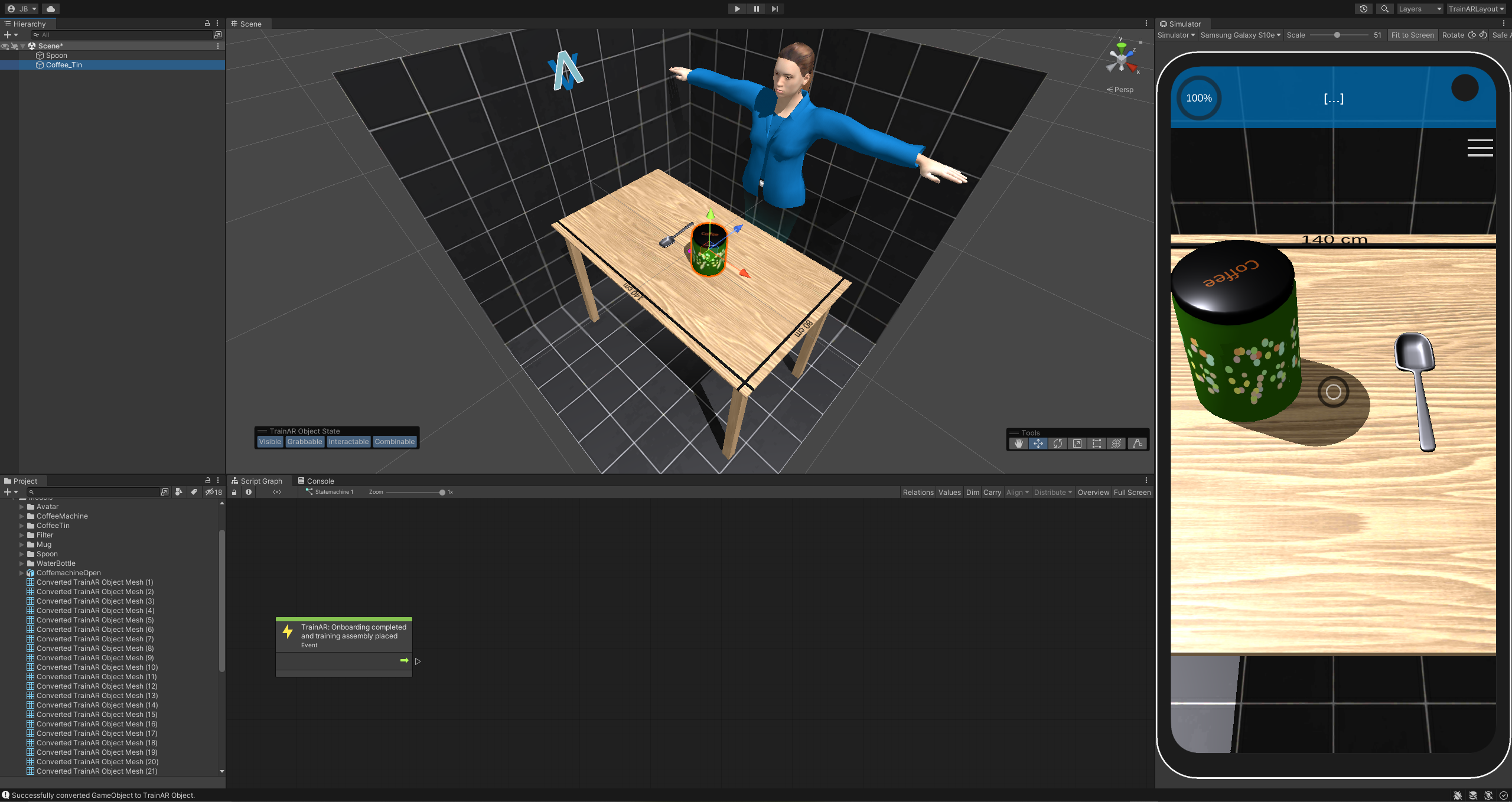
Good! You converted and placed some TrainAR Objects onto the Training Assembly. You could already deploy this training to a device and see your objects in AR but they would not elicit any behaviour or feedback based on the user's actions. For this we have to connect the TrainAR Objects in our TrainAR Stateflow.
Create a TrainAR Stateflow
In the Bottom of the Unity window you should see the window with the Script Graph Tab.
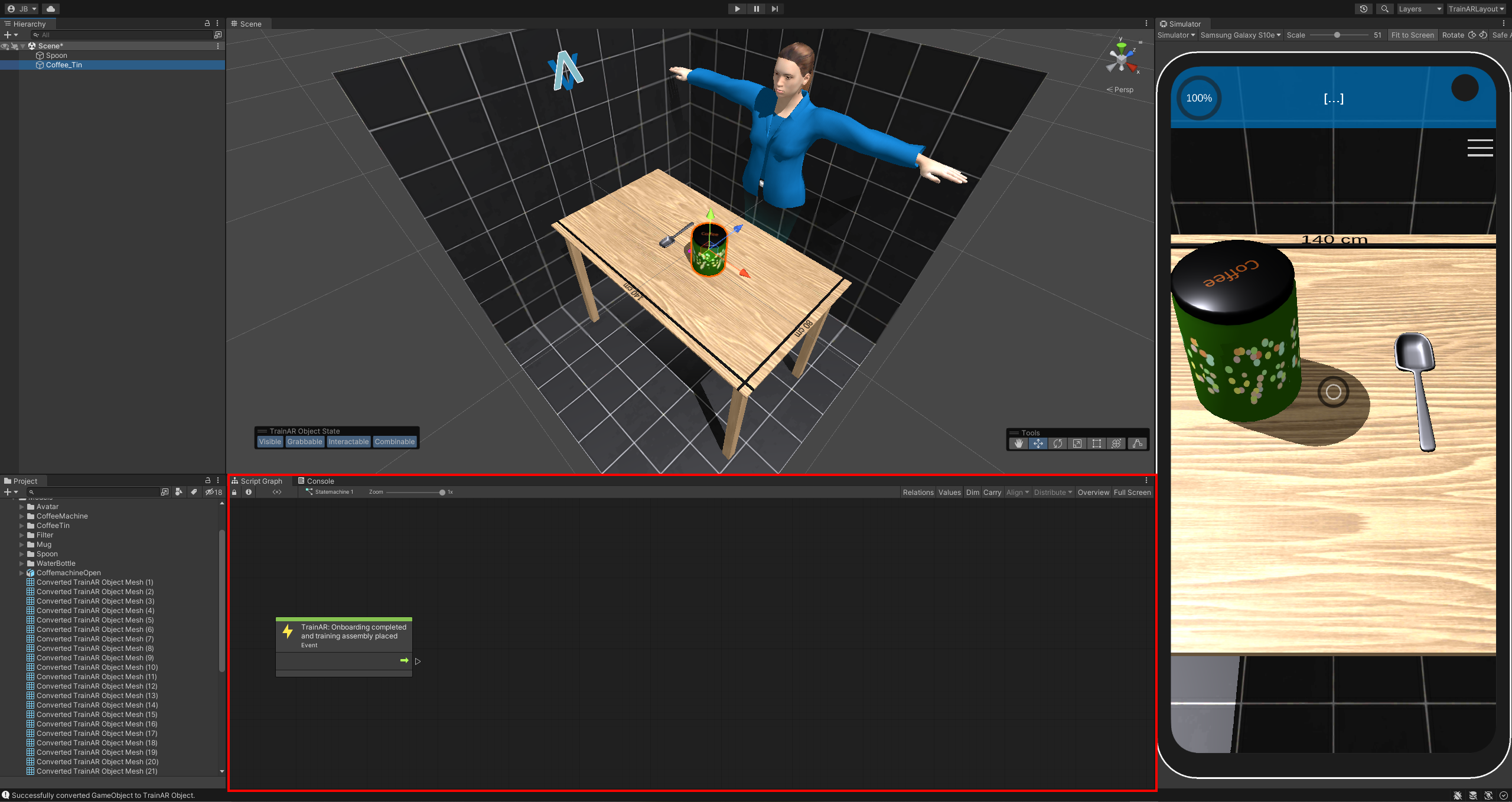
Here you can create the flow of your training by creating nodes and connecting them. There already are two nodes in the Script Graph: TrainAR: Onboarding completed and training assembly placed, where the training starts, and TrainAR: Training Conclusion, where it ends.
This is the entry point of your training flow and makes sure that when your training starts, TrainAR already handled onboarding and the training assembly was placed into a valid position by the user.
Right click into the Script Graph Window and select TrainAR from the Node Menu. From there, select TrainAR: Action.
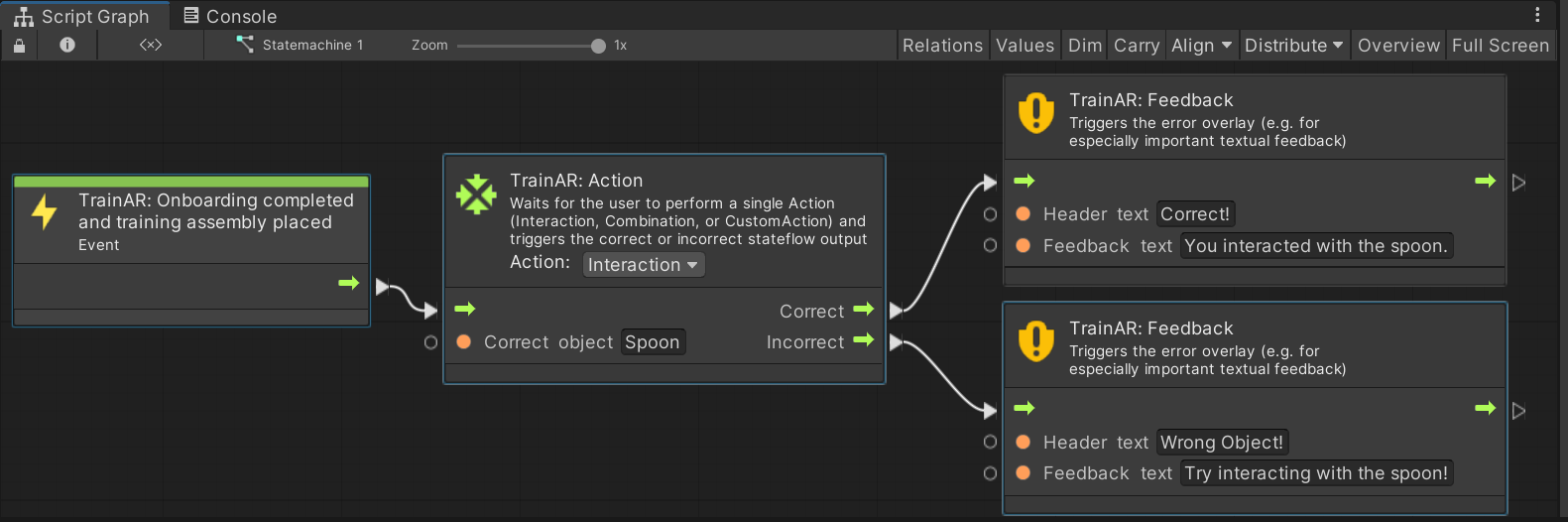
The TrainAR Action node should appear in the Stateflow. There are two types of action you can define: Interaction and Combination. For now leave the chosen action to Interaction. In the TrainAR: Action node under the Correct Action textfield type in Spoon.
Now connect the two nodes by clicking on the output of the TrainAR: Onboarding completed and training assembly placed node and connecting the line with the input of the TrainAR: Action node.
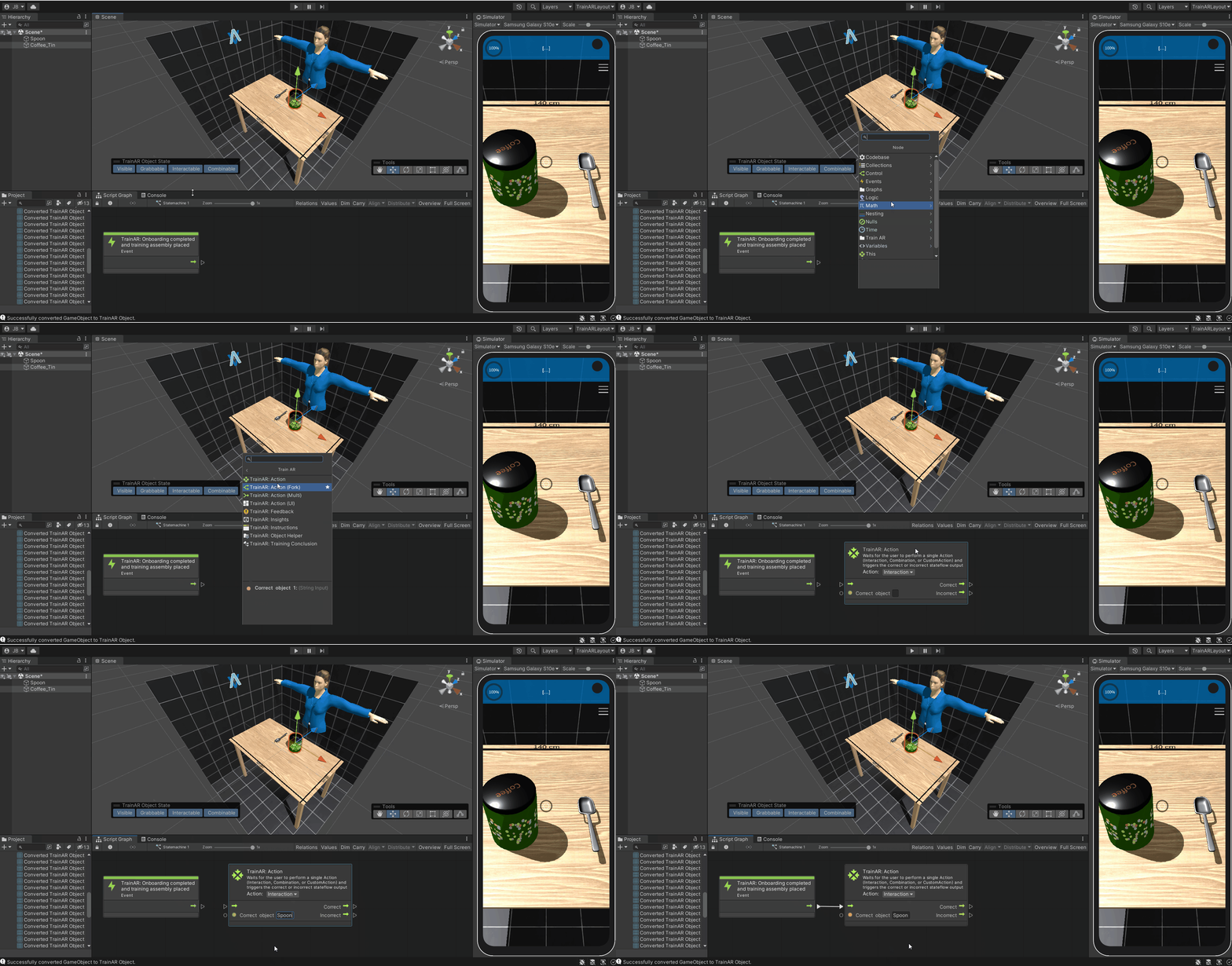
You have now defined that, at this point in the stateflow (the very start), the correct next step is to trigger an Interaction on the TrainAR Object Spoon.
Right click again in the Script Graph window to open the node menu and select the TrainAR: Feedback node in the TrainAR nodes folder. This node opens an error overlay. Type a fitting error message in the textfield and connect the Incorrect output of the TrainAR: Action node with the Input of the TrainAR: Feedback node.
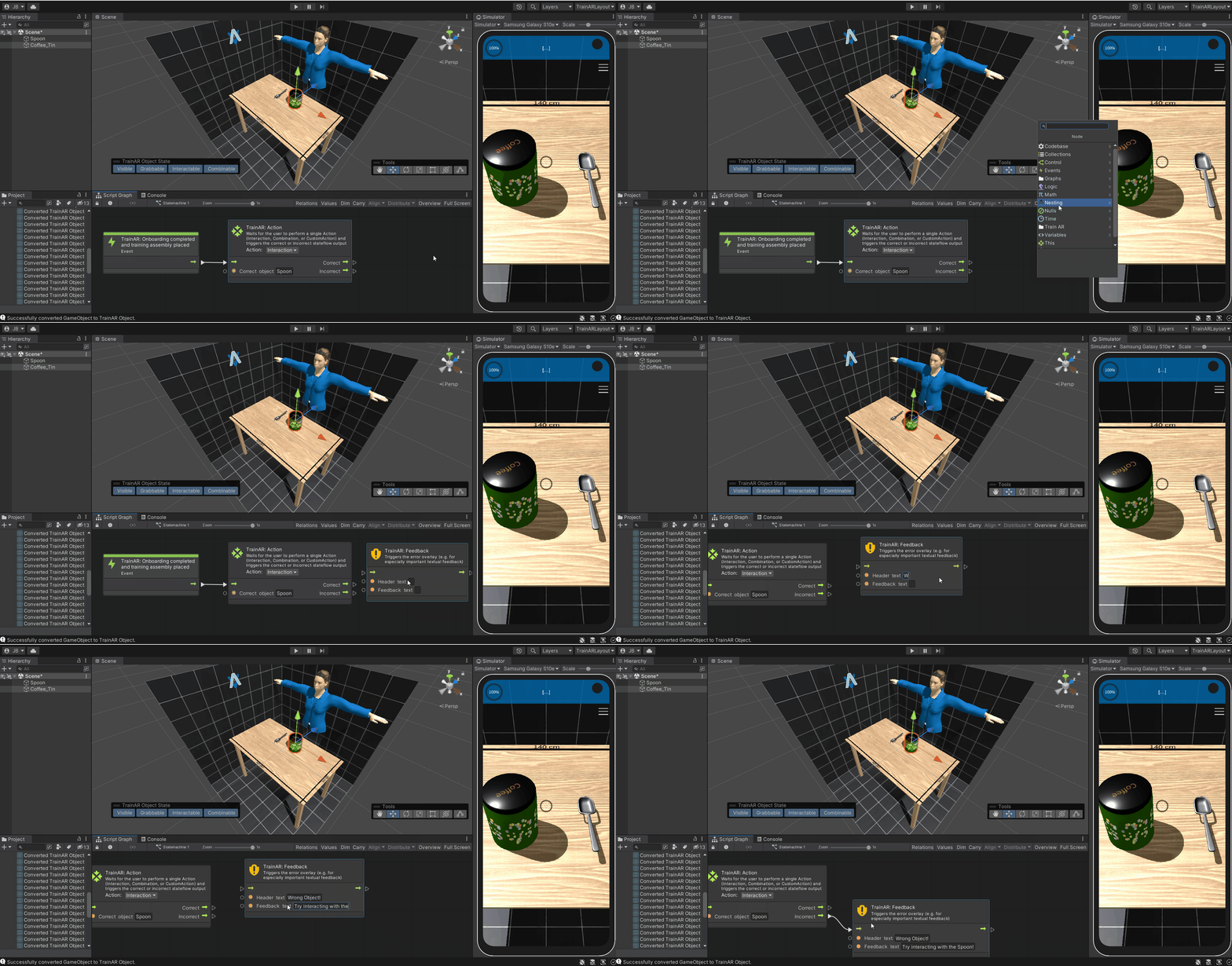
You have now defined what happens if an incorrect action is taken at this point in the stateflow. Now define what should happen if the correct action is taken.
Create another TrainAR: Feedback node and type in feedback for the correct action taken and connect it to the Correct output of the TrainAR: Action node.
Note
This is for demonstration purposes only. Feedback nodes should normally be used for errors and not positive feedback as described in the didactic considerations of our research paper: TrainAR: A Scalable Interaction Concept and Didactic Framework for Procedural Trainings Using Handheld Augmented Reality.
Now create another TrainAR: Action node and connect it to the TrainAR Feedback for the correct feedback. Select Combination as an Action in the node. Under Correct Grabbed Object type in Spoon and under Correct stationary Object type in Coffee_Tin. Connect the nodes.
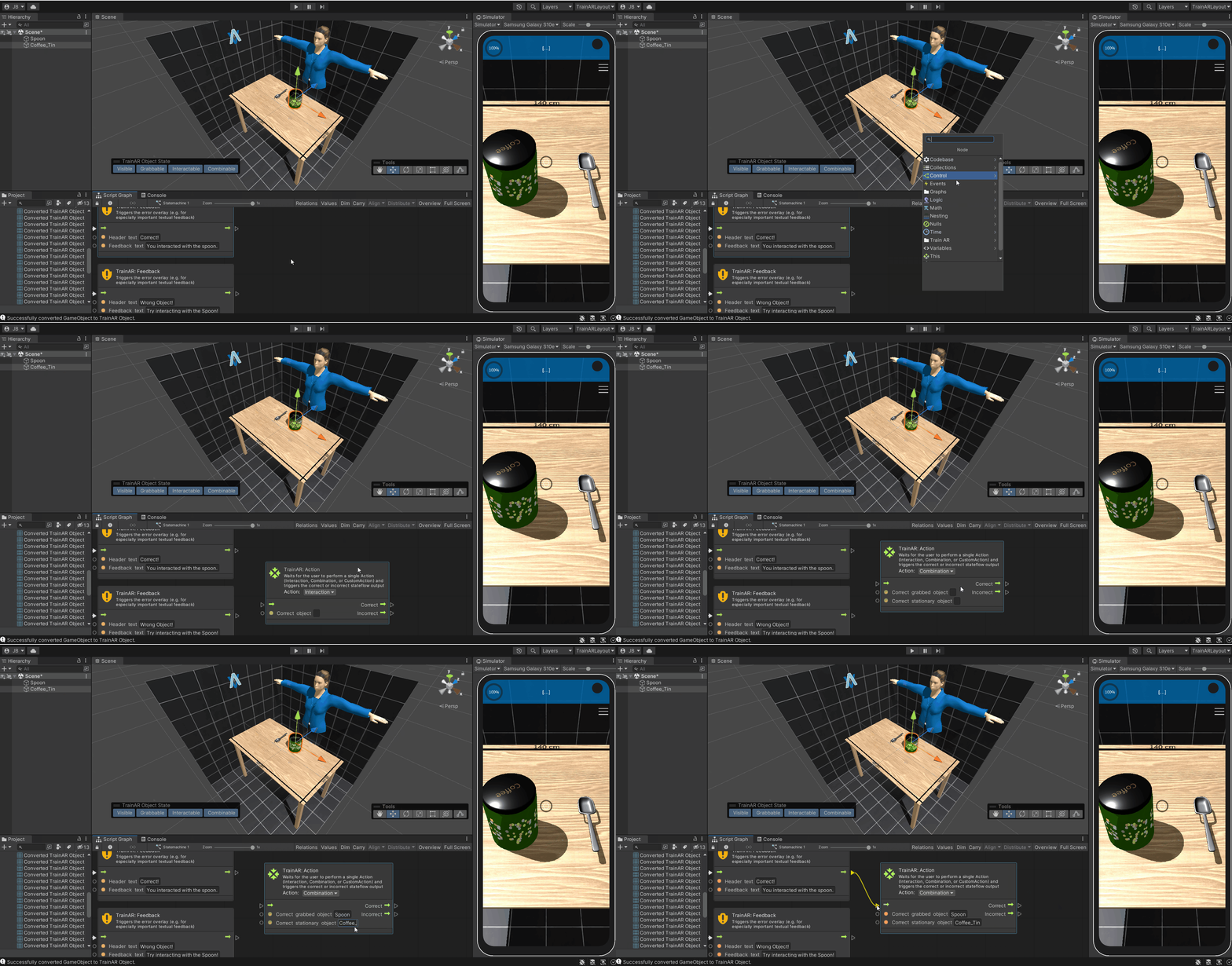
You have now defined, that at this point in the stateflow, the correct step is to combine the spoon with the coffee tin. Next you'll have to define what happens as a result. Let's make the combine fill up the spoon.
To do this add a TrainAR: Object Helper node to the stateflow. In the node, set the dropdown menu to Replace Mesh and type in the Object Name field Spoon. In the Project Tab navigate to the Models/CoffeeSet/Scoop folder, unfold the Scoop_Full model and drag-and-drop its Scoop_Full mesh into the mesh field of the node. Then, drag-and-drop the Scoop_Full material from the same folder into the material field. Finally, connect the stateflow.
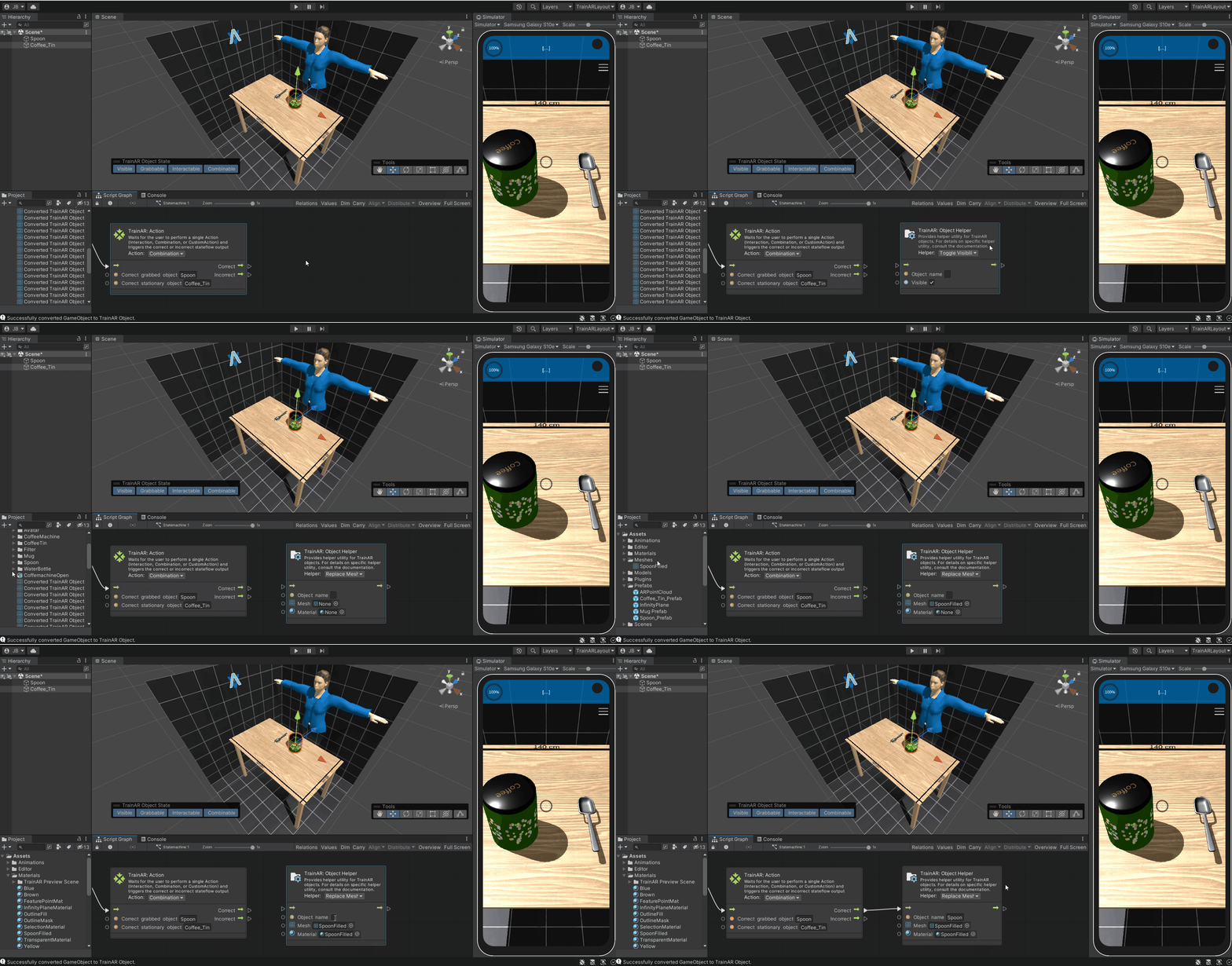
This basically tells TrainAR, that we want to replace this object's shape and texture as a result of this action (because now there is coffee in it).
Afterwards, add a TrainAR: Action (UI) node. A node that can trigger UI Custom Actions. Set the dropdown menu in the node you just created to Questionnaire. A UI action node waits for user input on the UI before it continues in a stateflow. In this example, we'll simply ask the user whether or not he wants to finish the training. Therefore write a fitting Questiontext in the Question field of the node and add some choosable answers. Don't forget to connect the stateflow of the previous node.
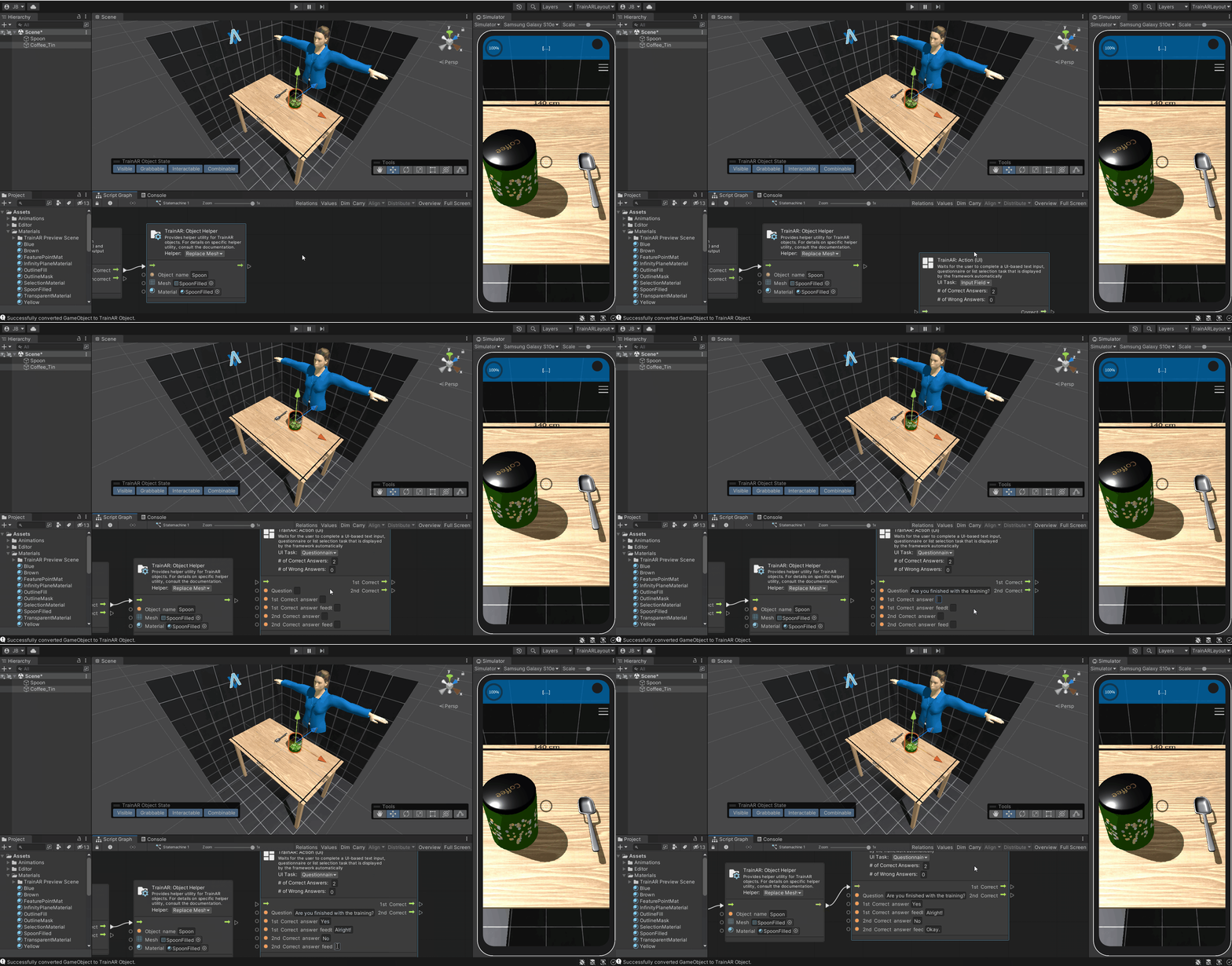
Finally, connect the node from the previous step with the TrainAR: Training Conclusion node that is already part of every new training. This tells TrainAR to show the TrainAR Training Assessment and that we are done with the training.
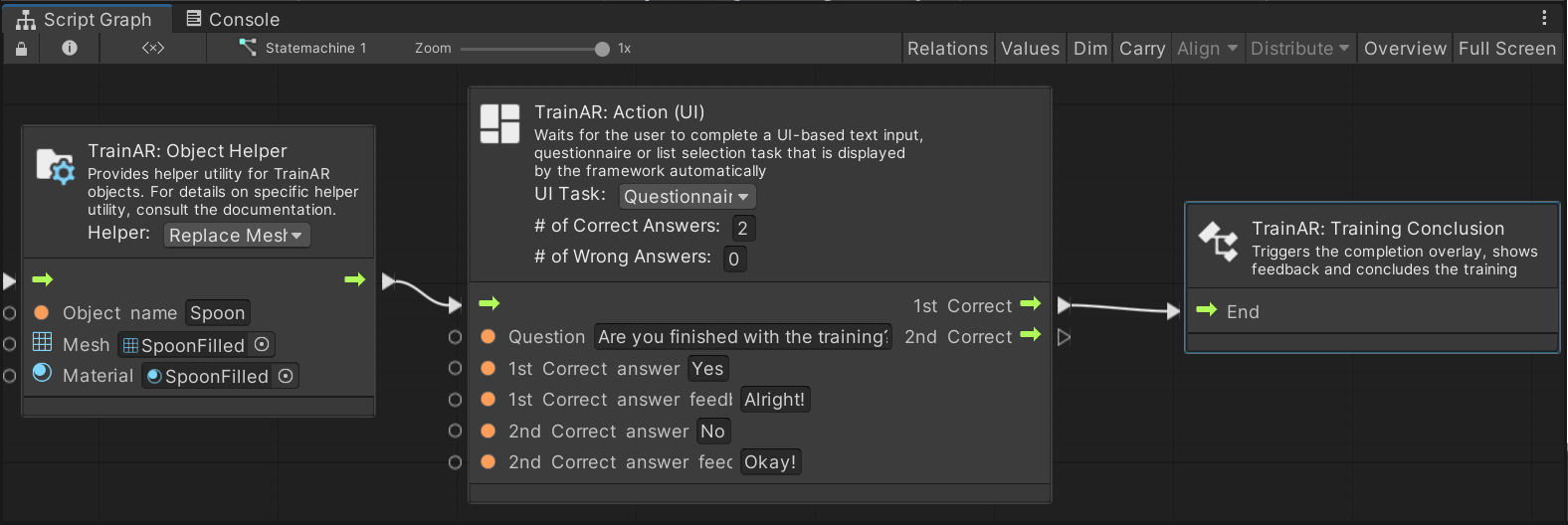
Done!
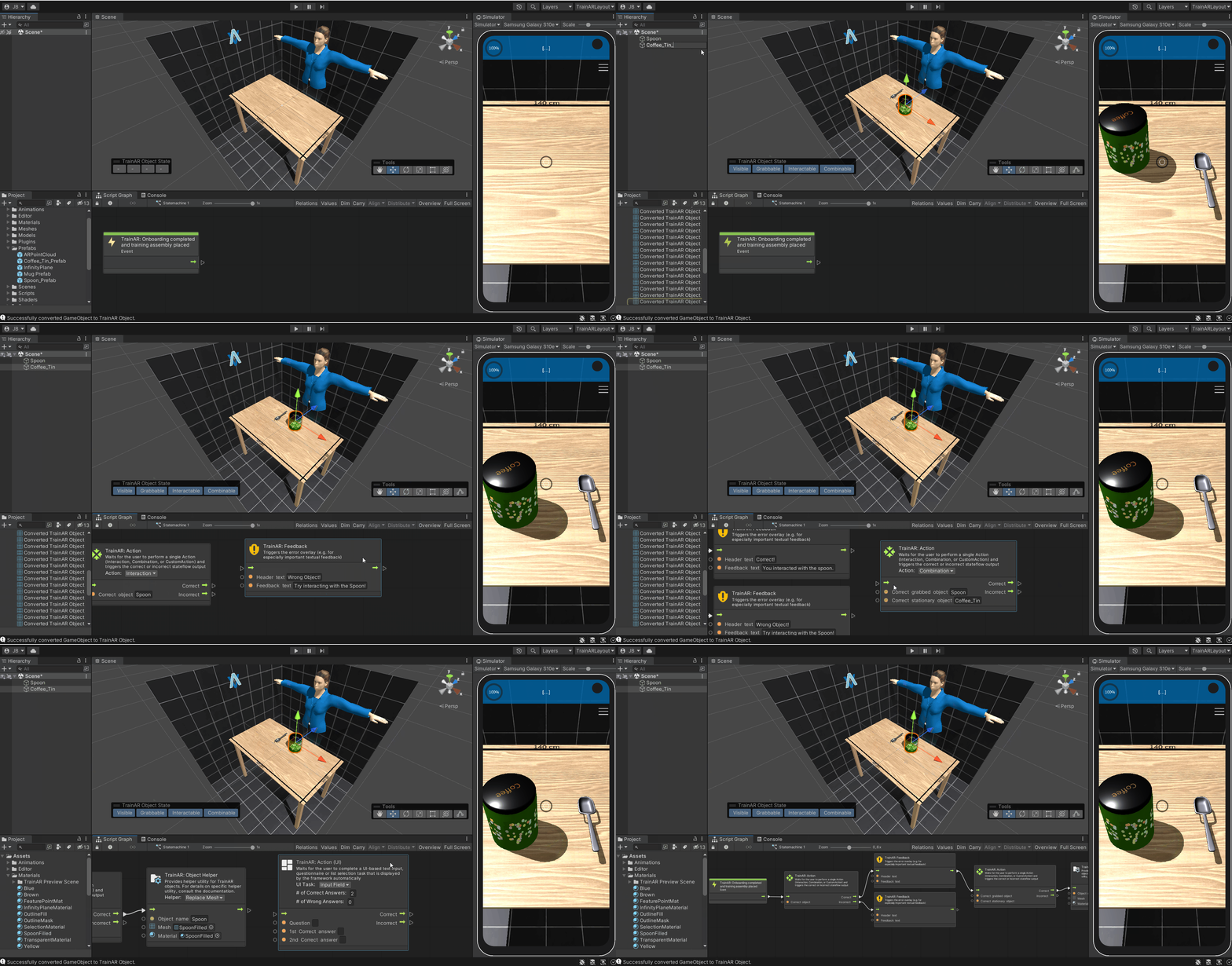
The full process from start to finish
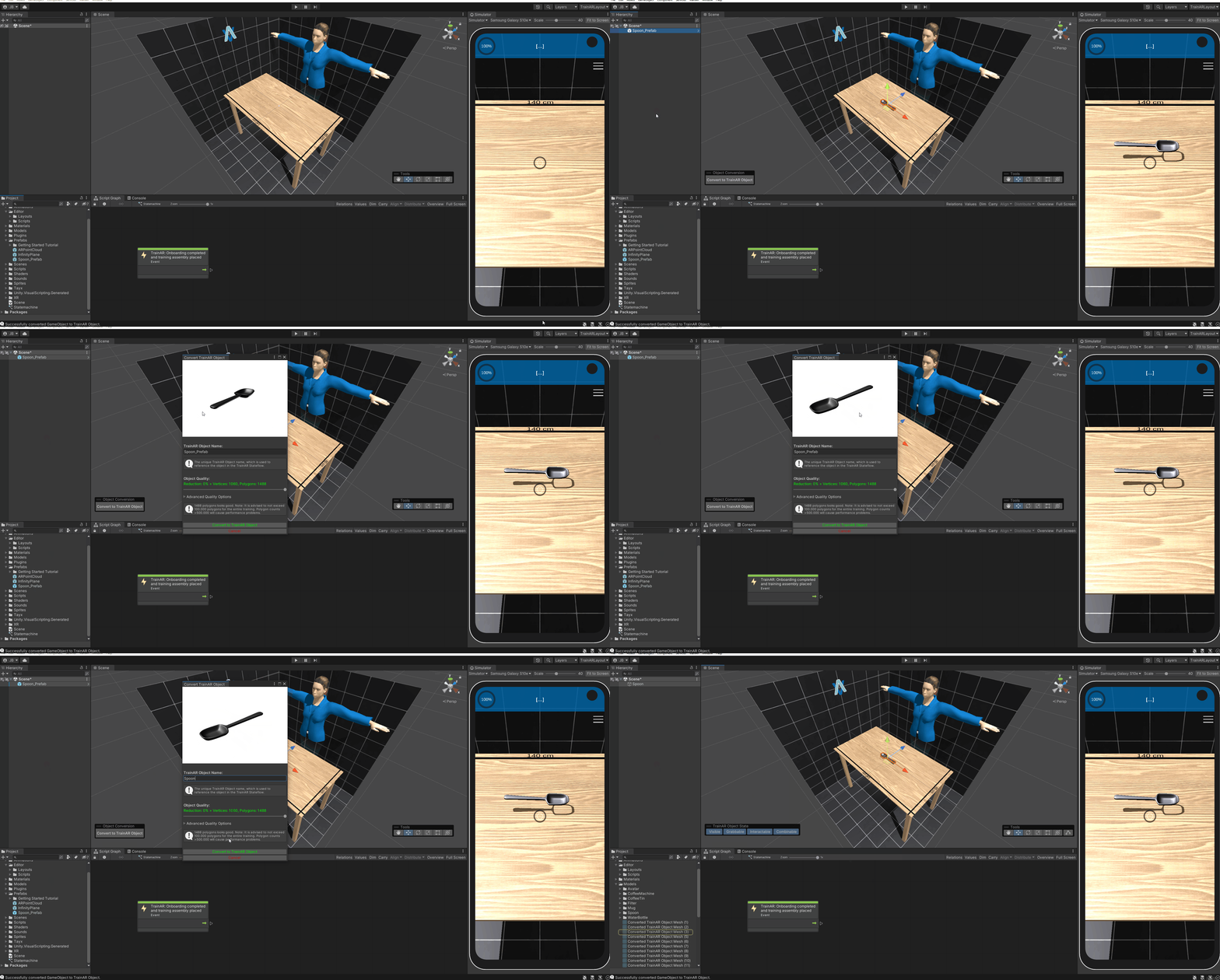
Here is the full process of creating this simple training from scratch in one go:
Deploy your training to your phone
Connect your (Android) phone to your Computer.
Make sure you have USB Debugging activated on your phone.
Press the play button in the Unity Editor to deploy your training to your device.
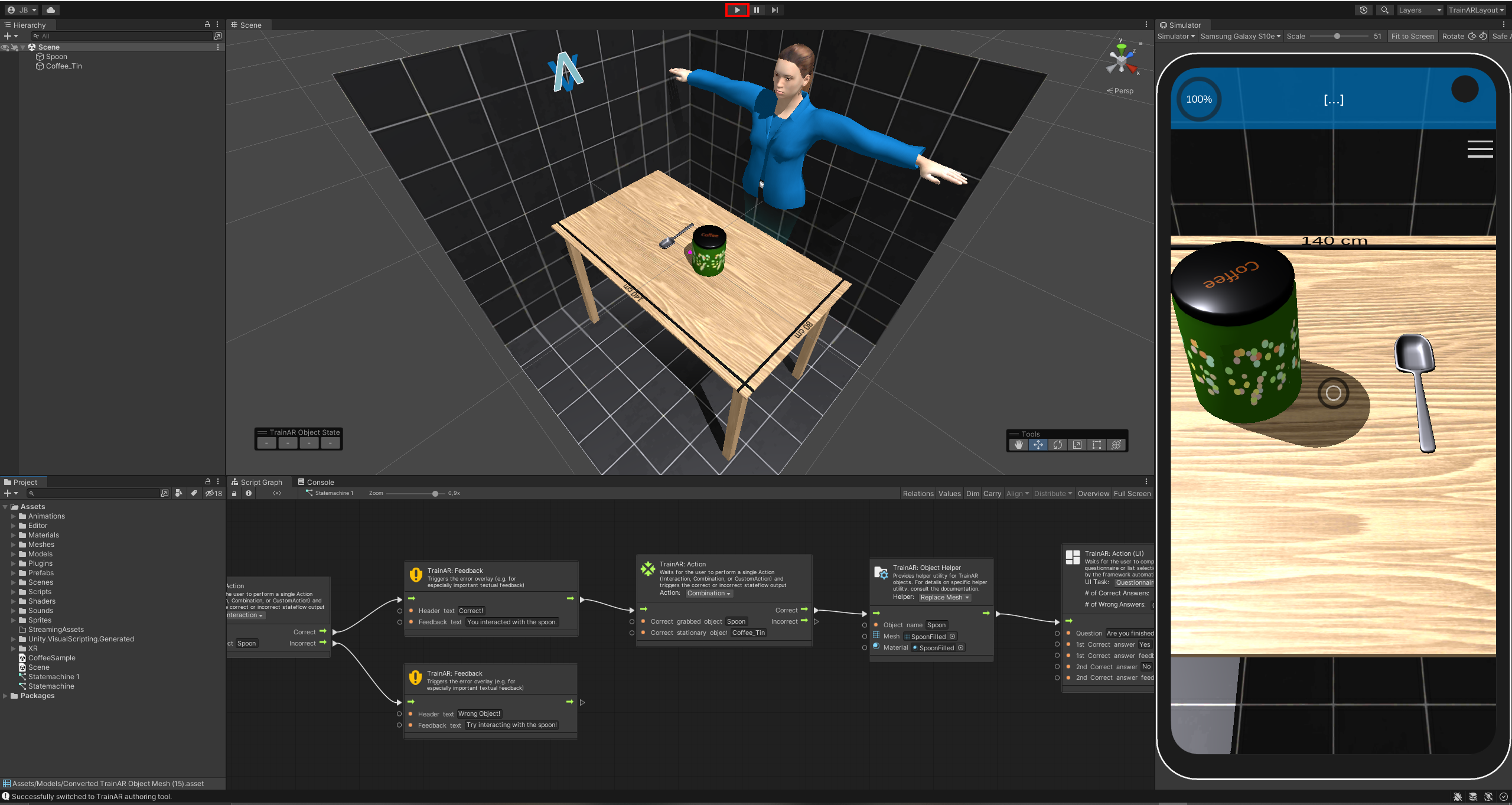
Wait for the process to finish.
Afterwards, unlock your phone.
Note
Deploying to an iPhone: with iOS as the active platform (see Installation & Setup), the play button does not install the app directly. It exports an Xcode project to Builds/iOS and builds and runs it through Xcode on macOS. In Xcode, select your Apple developer team once under Signing & Capabilities, connect your iPhone and allow it as a developer device.
Your training should now be deployed to your phone and the app should start automatically. It should also appear as a "TrainAR" App, installed on your device in the menu. Every training of the project is part of the app: the home screen lists them all.
Test your training
If it did not open automatically, open the now deployed application on your phone through the menu. Your phone might ask you if the TrainAR app should be allowed to use your phone's camera. Confirm this, as we need the camera to use Augmented Reality.
The home screen shows all trainings of the project with their name, description, expert and a preview of their setup. Tap your training. A short tutorial that describes the interaction concept of TrainAR should appear. Navigate through the tutorial/onboarding to start your training. When the training is completed, you get back to the home screen.
The camera feed of your device should start and you're asked to find a flat surface to scan. Follow these instructions. This should result in the setup you just created being placed onto a table surface.
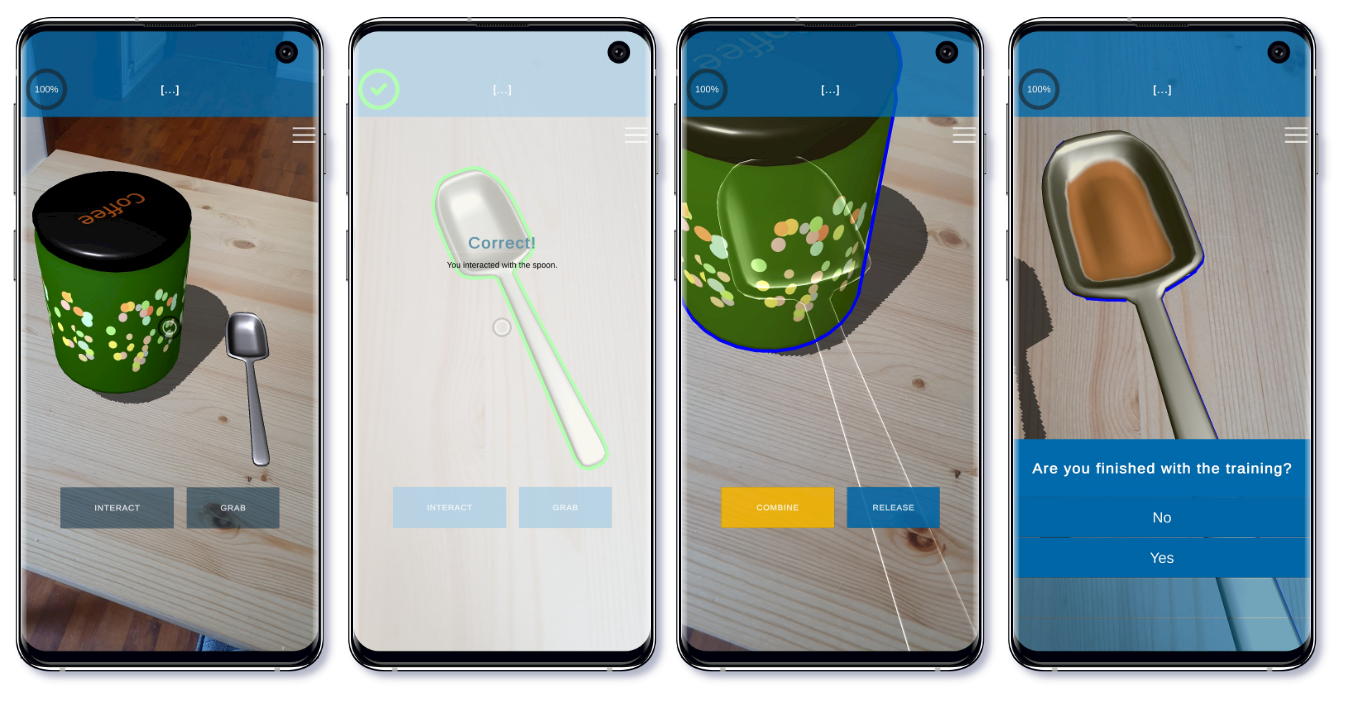
Now you can go through the chain of actions you just defined into the TrainAR Stateflow, which should look roughly like this: